
Wi-Fi 7: The Amazing Benefits You Need to Know
Table of Contents
You’ve probably seen the label by now. It’s stamped on the box of the router your neighbor just bought, it’s flashing across tech review sites, and it’s showing up as a spec on the newest phones and laptops. Wi-Fi 7 is here, and it’s not just marketing noise this time.
But here’s the question you actually care about: does upgrading make a real difference for you, or is it another overhyped number on a router box? You’re not wrong to be skeptical. Every few years, a new wireless standard promises to change everything, and most of the time your day-to-day browsing feels the same afterward.
This time is a little different. Wi-Fi 7 brings a genuinely new trick to the table, not just a bigger number. By the end of this guide, you’ll know exactly what it does, whether your household will actually notice the change, and how to buy the right router without overspending on features you’ll never use.
What Is Wi-Fi 7, Exactly?
Let’s strip away the jargon for a second. Wi-Fi 7 is the newest wireless networking standard, officially known as 802.11be. Think of it as the latest model year in a car lineup you already know — same basic idea as the generation before it, but with a meaningfully upgraded engine.
The Short Answer for Non-Techies
If you want the one-sentence version: Wi-Fi 7 lets your router talk to your devices across three frequency bands at once, instead of picking just one, which means fewer dropped connections, less lag, and steadier speeds when your home is packed with smart devices.
Where It Fits in the Wi-Fi Family Tree
To understand why that matters, it helps to see where the new standard sits next to what came before it:
- Wi-Fi 5 (802.11ac) — released in 2014, still common on budget devices, limited to the 5GHz band.
- Wi-Fi 6 (802.11ax) — arrived in 2019, brought back reliable 2.4GHz performance and pushed theoretical speeds up to 9.6 Gbps.
- Wi-Fi 6E — added access to the previously unused 6GHz band, giving you a wide, uncrowded lane, but with a shorter range.
- Wi-Fi 7 (802.11be) — combines everything above and adds the ability to use all three bands (2.4GHz, 5GHz, and 6GHz) simultaneously.
That last point is the part worth paying attention to, and it’s called Multi-Link Operation. It’s the actual headline feature behind this new standard, so let’s break it down properly.
Wi-Fi 7 vs Wi-Fi 6: What Actually Changed
Comparing Wi-Fi 7 vs Wi-Fi 6 side by side is where the upgrade starts to make sense — or doesn’t, depending on your setup.
Speed: The Numbers That Matter
On paper, Wi-Fi 6 already offered plenty of headroom, topping out near 9.6 Gbps in theory. The newer standard pushes that ceiling even higher using wider 320MHz channels and denser 4K-QAM modulation, which essentially packs more data into every single transmission.
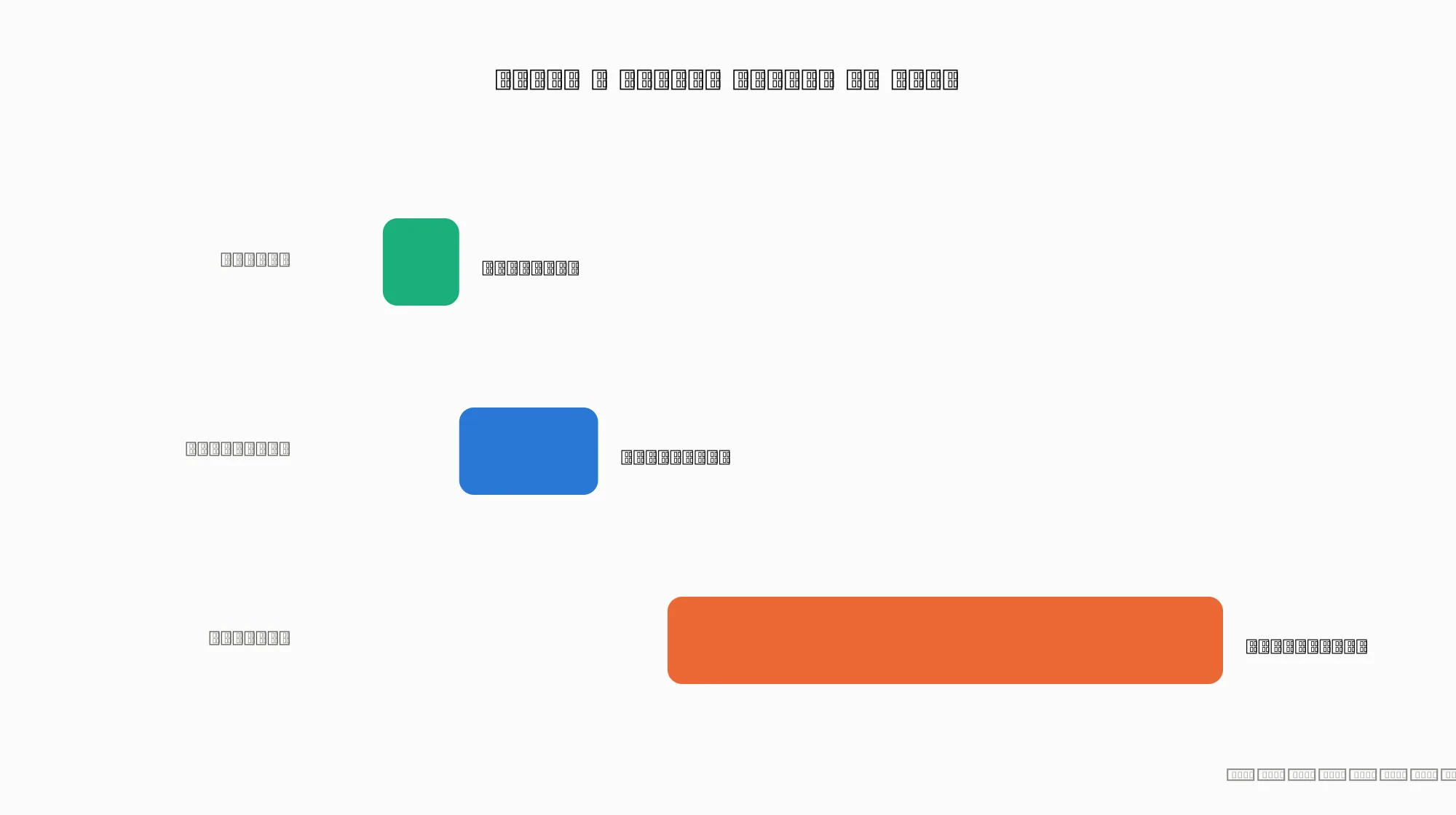
In real-world testing, that translates into genuinely fast numbers. Independent lab tests of the latest routers found close-range throughput exceeding 2.5 Gbps, with mid-range performance (around 50 feet) still comfortably above 1 Gbps on premium hardware. Compare that to typical Wi-Fi 6 setups, which usually fall well below 1 Gbps once you move a room or two away from the router, and the difference becomes obvious in a busy household.
Multi-Link Operation (MLO) — The Real Star of the Show
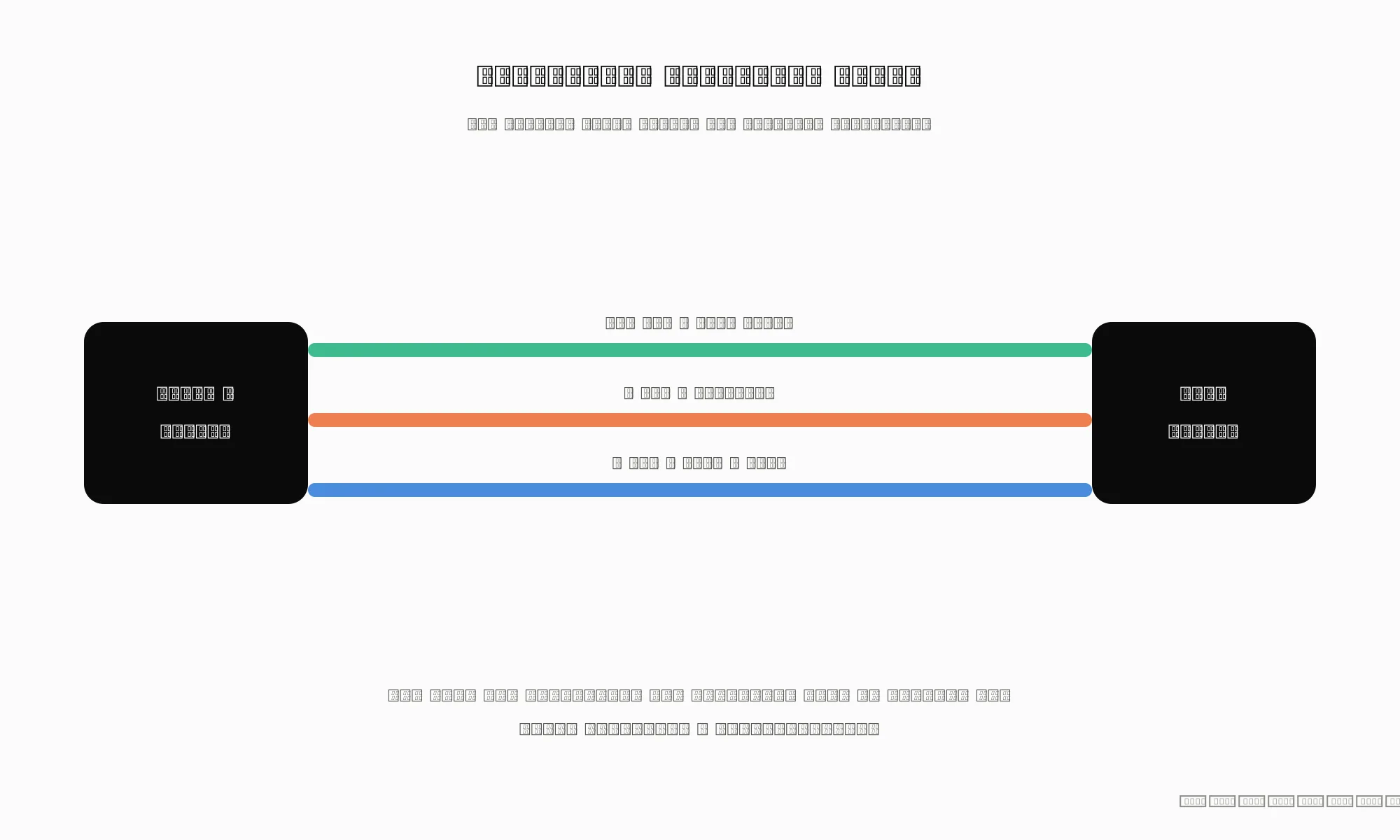
Here’s the feature that actually separates this standard from every generation before it. Multi-Link Operation lets a compatible device connect to your router across multiple bands at the same time, similar to how link aggregation bonds multiple wired connections into one faster pipe.
eMLSR vs STR MLO, Explained Simply
There are two flavors of MLO you’ll encounter:
- eMLSR (Enhanced Multi-Link Single Radio) — your device constantly monitors all available bands and instantly switches to whichever one is least congested at that moment. It doesn’t multiply your speed, but it dramatically improves reliability, so video calls stop freezing when your neighbor’s Wi-Fi gets busy.
- STR MLO (Simultaneous Transmit and Receive) — the more advanced version, where a device genuinely sends and receives across two bands at once, effectively bonding them into a single faster connection. It’s less common in consumer client devices today, but it’s already delivering serious results for mesh router backhaul, with some setups sustaining links over 5 Gbps between router nodes.
For most households, eMLSR is the version doing the heavy lifting right now, and its real value is stability, not raw speed. That’s an important distinction, because it changes what you should actually expect after upgrading.
The 6GHz Band and Why Congestion Finally Eases
If you live in an apartment building where your Wi-Fi list shows fifteen other networks, you already know the problem: too many routers crowding the same narrow lanes. Full use of the 6GHz band gives you a wider, quieter road with far less traffic, which is often the single biggest reason people notice snappier performance after switching.
What Wi-Fi 7 Actually Feels Like in Your Home
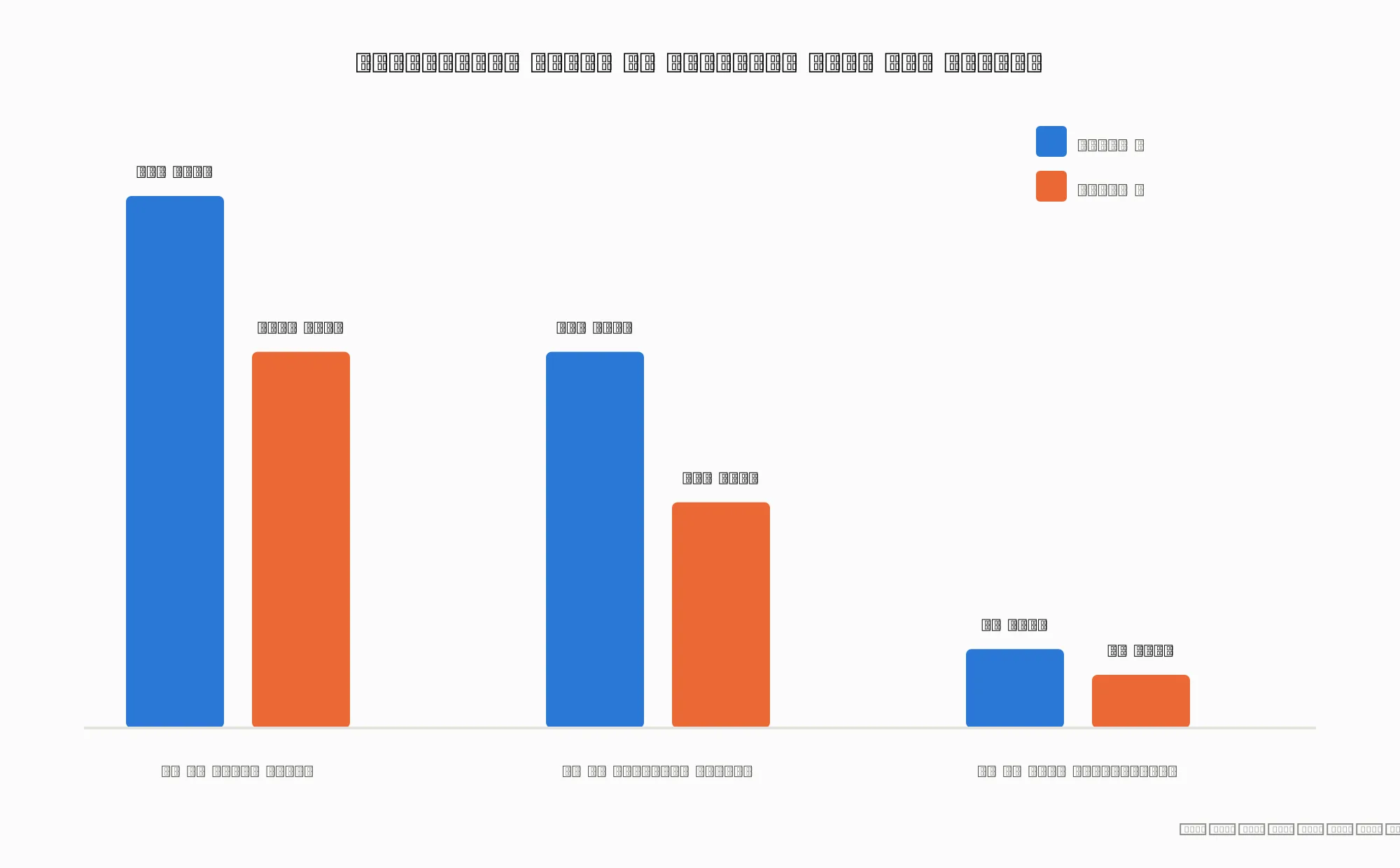
Numbers on a spec sheet only tell part of the story, so here’s what independent testing shows for real-world Wi-Fi 7 speed at different distances from the router:
| Distance from router | Typical Wi-Fi 7 speed | Typical Wi-Fi 6 speed |
|---|---|---|
| 15 feet (same room) | 2.5+ Gbps | 1–1.5 Gbps |
| 50 feet (through a wall or two) | 1–1.5 Gbps | 300–600 Mbps |
| 90 feet (far room or another floor) | 40+ Mbps on premium routers | Often drops below 30 Mbps |
Keep in mind your actual internet speed still depends on the plan you pay your provider for. A faster router can’t make a 100 Mbps internet plan act like a gigabit connection — what it does is stop your home network itself from being the bottleneck once your provider’s speed is fast enough to use it. If you haven’t checked what you’re actually getting from your ISP recently, it’s worth running a quick speed test before you spend money on new hardware.
Do You Actually Need a Wi-Fi 7 Router Right Now?
This is the part most articles skip, and it’s the part you actually need answered.
Signs You Should Upgrade
- You have 15+ connected devices (smart bulbs, cameras, phones, laptops, a TV, speakers) and your network noticeably slows down during peak hours.
- You already pay for a gigabit-or-faster internet plan but never see those speeds on Wi-Fi.
- You work from home and rely on video calls that keep freezing or dropping.
- You live somewhere with heavy Wi-Fi congestion, like an apartment complex or dense neighborhood.
- Your current router is more than five years old and struggling to keep up.
Signs You Should Wait
- Your internet plan is under 300 Mbps — your current router likely isn’t your bottleneck.
- You have fewer than 10 connected devices and haven’t noticed any real problems.
- Your phone, laptop, and other devices don’t support Wi-Fi 7 yet, meaning you won’t unlock MLO’s benefits immediately.
- You’re on a tight budget and your current setup, though older, still gets the job done.
If you fall into the second list, there’s no rush. Prices will keep dropping, and device compatibility will keep improving, so waiting even six months to a year works in your favor.
How to Choose Your First Wi-Fi 7 Router
Once you’ve decided you’re ready, picking the right hardware doesn’t have to be complicated. Follow these steps:
- Match the router to your internet plan. There’s no point buying a router capable of multi-gigabit speeds if your ISP only delivers 200 Mbps.
- Check your device compatibility. Look up whether your phone, laptop, and smart TV actually support the new standard — many devices from 2023 and earlier don’t.
- Consider mesh if your home is large. A single router, even a powerful one, still struggles to cover multiple floors evenly.
- Don’t over-index on maximum theoretical speed. The real-world difference between a $200 and a $1,300 router is often smaller than the price tag suggests.
- Look for tri-band support with full MLO, not just the label on the box — some budget models cut corners on which bands actually work together.
Budget vs Premium — What You’re Paying For
Wi-Fi 7 routers currently range from around $90 to well over $1,000. The cheaper end typically gets you the new standard with limited MLO support and smaller coverage. The premium end adds stronger antennas, better mesh coordination, more processing power for handling dozens of devices, and full STR MLO support. For a typical household, the mid-range tier usually delivers the best balance of value and performance.
Common Wi-Fi 7 Myths, Busted
“Wi-Fi 7 will double my internet speed automatically.” Not true. It improves your home network’s capacity and reliability, but your internet speed is still capped by whatever plan you’re paying for.
A few other misconceptions worth clearing up:
- “I need to replace every device in my house.” False — Wi-Fi 7 routers remain fully backward compatible with older Wi-Fi 5, 6, and 6E devices.
- “MLO makes every device faster.” Only devices with a compatible radio benefit from MLO directly; older devices simply connect the normal way.
- “6GHz reaches just as far as 5GHz.” It doesn’t. The 6GHz band trades some range for a much wider, less congested lane, which is why mesh setups matter more with this generation of hardware.
Quick Setup Tips to Get the Most Out of Wi-Fi 7
- Place your router centrally and elevated, away from thick walls and metal appliances.
- Update your router’s firmware immediately after setup — early firmware for this standard has seen frequent stability improvements.
- Enable band steering and MLO in your router’s settings if it’s not on by default.
- Separate your smart home devices onto a dedicated 2.4GHz network if your router supports it, keeping the fast bands free for your main devices.
- Re-run a speed test after setup to confirm your network, not just your plan, is performing the way it should.
What’s Next After Wi-Fi 7?
If you’re wondering whether you should just skip ahead and wait for Wi-Fi 8, know that early previews suggest it will focus even more on AI-driven network management and ultra-reliability rather than another dramatic speed jump — and it’s still years from mainstream availability. For a deeper look at where connectivity is heading beyond routers and standards, our breakdown of the future of internet technology is worth a read.
It’s also worth understanding how your wired and wireless options compare before you commit to an all-Wi-Fi setup. If a few of your devices, like a gaming PC or a home office desktop, can reach an Ethernet connection, keeping them wired will still give you the most consistent performance wireless can’t quite match for latency-critical tasks.
For more on how this new standard compares against previous generations in real testing conditions, Tom’s Guide’s router testing offers a detailed, hands-on breakdown, and dongknows’ explanation of Multi-Link Operation is a great technical deep dive if you want to go further.
Is Wi-Fi 7 worth it in 2026?
u003cpu003eFor most households with fast internet plans and lots of connected devices, yes — Wi-Fi 7 noticeably reduces congestion and improves reliability. If your internet plan is slower than 300 Mbps or you have very few devices, the upgrade matters less right now.u003c/pu003e
What’s the real difference between Wi-Fi 7 and Wi-Fi 6E?
u003cpu003eWi-Fi 6E introduced the 6GHz band, but Wi-Fi 7 is the first standard that can use 2.4GHz, 5GHz, and 6GHz simultaneously through Multi-Link Operation, which is what actually improves your everyday experience.u003c/pu003e
Do I need a new phone or laptop to benefit from Wi-Fi 7?
u003cpu003eTo use Multi-Link Operation directly, yes, your device needs a compatible radio. Older devices still connect fine to a Wi-Fi 7 router; they just won’t get MLO’s stability benefits themselves.u003c/pu003e
How much does a Wi-Fi 7 router cost in 2026?
u003cpu003ePrices range from roughly $90 for entry-level models to over $1,000 for high-end mesh systems, with most households finding good value in the $200–$400 range.u003c/pu003e
Will Wi-Fi 7 work with my older smart home devices?
u003cpu003eYes. Wi-Fi 7 is fully backward compatible, so your existing smart bulbs, cameras, and older laptops will keep working exactly as before.u003c/pu003e
Ready to See Where Your Network Actually Stands?
Before you spend a cent on new hardware, run a free speed test to find out whether your internet plan or your current router is holding you back. It only takes 30 seconds, and it’s the smartest first step toward a faster, more reliable home network.