
What Is Bufferbloat? The Hidden Cause of Lag
Table of Contents
What Is Bufferbloat? The Hidden Cause of Lag
Have you ever paid for a fast internet plan, run a speed test, seen a great number, and then watched your video call freeze the moment someone in your house started uploading photos? You are not imagining it, and your provider is probably not lying about your speed. The culprit has a name: bufferbloat.
So, what is bufferbloat? In plain terms, it is the delay that builds up when your router, modem, or provider equipment holds on to too much data before sending it along. Your connection still moves plenty of data per second, but every packet waits in a long line first. The result is lag, stutter, and frozen screens that no speed test seems to explain.
In this guide, we cover what bufferbloat is. How the problem works, how to spot it in your own home, how to run a proper test, and which fixes actually move the needle. No jargon walls, just clear steps you can use today.

What Is Bufferbloat, Exactly?
Every piece of networking gear has a buffer, a small waiting area where packets sit when they arrive faster than they can leave. What is bufferbloat? Buffers are useful. They smooth out short bursts so you do not lose data every time traffic spikes for a split second.
The trouble starts when those waiting areas are far too big. Instead of absorbing a brief burst, the buffer fills up and stays full, and every packet behind the first one has to wait its turn. The Bufferbloat project describes the problem as the undesirable latency that comes from a router or other network equipment buffering too much data.
Picture a single-lane road with a huge parking lot at the entrance. Cars (your packets) pour into the lot far faster than they can squeeze onto the road. What is bufferbloat? Nothing gets lost, but the car at the back waits a very long time. That wait is your lag.
Why Speed Tests Hide the Problem
Most speed tests measure throughput, meaning how many megabits per second your line can move. They usually run in short bursts while the rest of your network sits idle. That is a perfect-weather test, and this kind of delay only shows up in a storm.
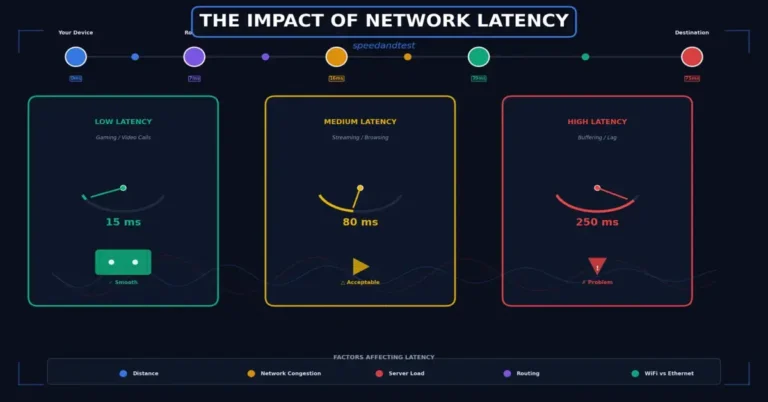
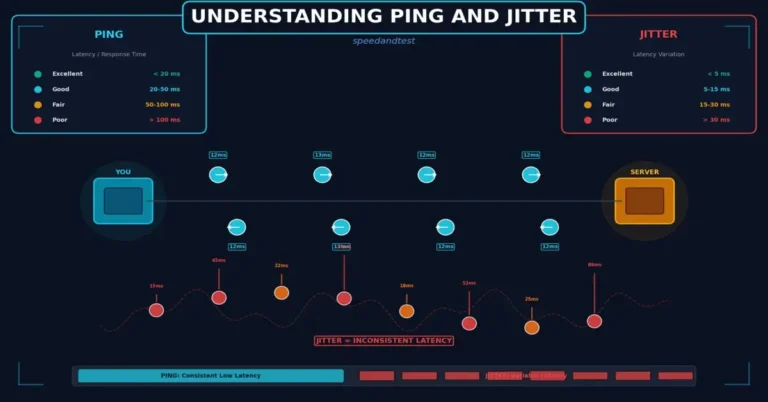
What matters here is latency under load. A line can show 500 Mbps down and still add half a second of delay the moment you upload a large file. If you want a deeper look at how delay is measured, our guide on jitter and ping breaks the numbers down in plain language.
That gap between a great speed result and a terrible real-world experience is exactly why so many people blame their Wi-Fi, their ISP, or their device when the real problem is a swollen queue.
How Bufferbloat Happens
The Bottleneck Link
Somewhere along your connection, what is bufferbloat there is a slowest link- usually the upload side of your modem or the line leaving your home. Data arrives at that point faster than it can leave, so a queue forms in front of it. If the queue lives in an oversized buffer, it grows long and stays long.
Why Oversized Buffers Make Things Worse
Memory is cheap, so manufacturers have spent years adding more of it to routers and modems. What is bufferbloat sounds like a safety net, but it removes the early warning that would normally tell senders to slow down.
How TCP Gets Fooled
Most internet traffic uses TCP, which slows down when it notices lost packets. A giant buffer never drops anything until it is full, so senders keep pushing harder and harder. By the time a packet is finally dropped, the queue holds seconds of data, and everything stuck behind it suffers.
A Quick Example With Real Numbers
Here is the math. A 1 MB buffer equals 8 megabits. On an upload speed of 10 Mbps, that buffer takes 0.8 seconds to drain. Every packet in a full queue waits nearly a full second before it even leaves your house, which is more than enough to wreck a call or a game.

Who Feels It the Most?
Remote Workers and Students
Video meetings are unforgiving. Audio needs a steady stream of small packets, and a long queue turns your voice into robot noise or freezes the picture. If you upload slides, files, or recordings while a meeting runs, you can create the problem yourself.
Gamers
Games care about delay far more than raw speed. A ping that jumps from 20 ms to 300 ms during a download means rubber-banding, missed shots, and the feeling that the game is cheating you. If this sounds familiar, our guide on ping and jitter goes further.
Busy Households
One person streams in 4K, another syncs a photo library, a third plays online. Each activity is fine alone. Together they fill the same queue, and everybody’s experience gets worse at once.
Signs of bufferbloat
You do not need special tools to get a first hint. Watch for these patterns:
- Video calls freeze or turn robotic when someone starts a cloud backup or large upload
- Online game ping jumps from 20 ms to several hundred milliseconds during downloads
- Web pages stall for a few seconds when another device streams in high quality
- Everything feels fine at 3 a.m. and sluggish at 8 p.m.
- A speed test looks great, yet the connection feels slow.
If two or more of these sound familiar, run a proper test. Our guide on network latency covers other reasons for lag, which helps you rule things out.
How to Run a Bufferbloat Test
Option 1: Use an Online Test
The easiest route is a browser-based tool built for this exact problem. The Waveform test loads your connection with downloads and uploads while it measures how much latency climbs, then gives you a letter grade. Close other apps first, plug in with Ethernet if you can, and run it two or three times.
Option 2: Do It Yourself With Ping
You can also check without any website. Follow these steps:
- Open a command prompt (Windows) or Terminal (Mac and Linux).
- Type ping 1.1.1.1 and note the normal response time while the network is quiet.
- Start a large upload, such as sending a big file to cloud storage.
- Watch the ping numbers while the upload runs.
- Compare the quiet reading with the busy one.
How to Read the Results
As a rough rule of thumb, an increase under 30 ms is healthy. Between 30 and 100 ms, you will feel it in games and calls. Above 200 ms, you almost certainly have a queue problem that needs fixing. Run a first check at SpeedAndTest.com, so you have a baseline to compare against.
How to Fix Bufferbloat
Turn On Smart Queue Management
The gold-standard fix is smart queue management, often shortened to SQM. It uses modern algorithms such as fq_codel and CAKE to keep queues short and fair, and the Bufferbloat project reports that these tools can hold the delay caused by competing traffic to around 20 milliseconds. Many routers offer it under names like Smart Queue, Adaptive QoS, or Anti-Lag.
Set Your Speeds a Little Lower
SQM works by taking control of the queue, so it needs to be the slowest point in your connection. Set the download and upload limits to roughly 85 to 95 percent of your measured speeds. You give up a sliver of top speed and gain a connection that stays responsive. The OpenWrt guide to SQM setup explains the details for supported routers.
Check Your Router Features and Firmware
Not every router includes these tools. Look for a setting called QoS, Smart Queue, or Gaming Mode, and update the firmware first, since manufacturers sometimes add better queue handling in later releases. If your router has no option at all, a replacement that supports SQM is often a better investment than a faster plan. Our mesh Wi-Fi system guide is a good place to start comparing hardware.
Use Ethernet for Devices That Matter
Wi-Fi adds its own delays, and that muddies the picture. Wire your gaming PC, console, or work laptop to the router when you can. The comparison between Ethernet and WiFi shows why a cable gives steadier results.
Talk to Your Internet Provider
If your router cannot be changed because the provider locks it down, ask whether a newer modem is available, or whether a plan with better upload capacity is offered. Upload speed is where queues build most often. Our ISP selection guide explains what to ask before switching.
Retest and Fine-Tune
Once the new settings are saved, repeat the same test you ran at the start, ideally at the busiest hour of your evening. If the delay still climbs, lower your speed limits by another few percent and try again. If it stays flat, you have found your sweet spot. Write the final numbers down, because they are handy if you ever change plans or equipment.
Is It This Problem or Something Else?
Not every lag spike comes from queueing. Wi-Fi interference, a weak signal, a congested neighborhood node, or an overloaded device can all produce similar symptoms. The key difference is timing. If the lag appears only when your connection is busy and disappears when it is idle, a swollen queue is the likely cause. If it is random or constant, look elsewhere, and our network troubleshooting guide walks through the other suspects.
Will Faster Internet Fix It?
Not by itself. More bandwidth means the queue drains faster, so the delay shrinks, but the buffer can still fill and still hurt you during heavy use. A gigabit plan with poorly managed queues can feel worse than a modest plan with good ones. Fix the queue first, then decide whether you need more speed.
Common Myths You Can Ignore
- “More Mbps solves everything.” Speed and delay are two separate measurements, and only one of them is on your bill.
- “It must be my Wi-Fi.” Wi-Fi can be the cause, but a wired test often shows the same lag.
- “Only gamers care.” Calls, meetings, and even web browsing suffer when queues fill.
- “My provider would have told me.” Most providers do not advertise latency under load, so few customers ever hear about it.
Where Things Are Heading
The good news is that the industry is paying attention. Modern queue management algorithms are now built into several operating systems and router firmware projects, and newer standards aim to reduce delay for interactive traffic across the whole path. Expect more consumer routers to ship with sensible defaults over the next few years, though you should still test yours rather than assume.
A Quick Fix Checklist
- Run a loaded-latency test and write down the result.
- Update your router firmware.
- Enable SQM, Smart Queue, or similar in the router settings.
- Set limits to about 90 percent of your measured speeds.
- Retest, and adjust by a few percent if needed.
Your Next Step
Don’t wait for the next frozen call to find out. Run a free speed test at SpeedAndTest.com, then repeat the same check while a large upload runs. If the numbers jump, enable smart queue management, trim your speed limits by about 10 percent, and test again. A small change can make a big difference.
Frequently Asked Questions About Bufferbloat
What is bufferbloat in simple words?
It is the lag you feel when your router or modem stores too much data in a waiting line. Your speed stays high, but each packet waits longer to be sent, so calls, games, and pages feel slow.
Is bufferbloat caused by my ISP or my router?
Either one can be responsible. The queue builds at the slowest point in the path, which is often your modem or router, but equipment on your provider’s side can contribute too.
How do I know if I have bufferbloat?
Run a loaded-latency test or compare ping times with and without a large upload running. If latency jumps by more than 100 ms under load, you very likely have a problem.
Can I fix bufferbloat without replacing my router?
Sometimes. Check your current router for QoS or smart queue settings and update its firmware. If nothing is available, a router that supports SQM is the most reliable fix.
Does bufferbloat affect streaming?
Streaming video buffers ahead, so it usually copes well. The damage shows up in interactive tasks like video calls and gaming, or when another device uploads at the same time.