
Network Speed Checker: The Ultimate Guide That Works
Table of Contents
You’ve probably clicked “Go” on a network speed checker more times than you can count, watched the numbers climb, and then wondered what you were actually looking at. Is 85 Mbps good? Is your ping too high? And why does the same checker give you a different number ten minutes later? If you’ve ever felt like you’re reading a foreign language every time you test your connection, you’re not alone — and by the end of this guide, that confusion is going to disappear for good.
A network speed checker is one of the few free tools that gives you an honest, real-time snapshot of what you’re actually paying for. But not all checkers are built the same way, and not all of them are testing the same things. Some are optimized to make your connection look great. Others go out of their way to stress-test your line, so you see the worst-case scenario. Knowing the difference is the first step toward using this tool the right way.
Think about the last time your connection genuinely frustrated you. Maybe a video call froze at the worst possible moment, or a file transfer crawled along for what felt like forever. In almost every one of those moments, a quick check would have told you immediately whether the problem was your WiFi, your provider, or something else entirely. That’s the real value here — not just a number to screenshot, but a diagnostic starting point you can trust.

What a Network Speed Checker Actually Measures
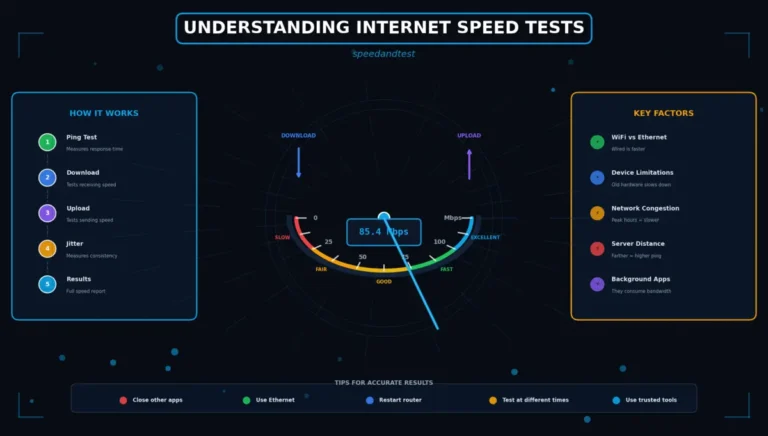
Before you can trust the number on your screen, you need to know what it represents. Most people assume a speed checker only measures “how fast the internet is,” but that phrase hides four separate metrics, each telling you something different about your connection.
Download Speed
This is the number most people care about, and for good reason — it controls how quickly pages load, videos buffer, and files land in your downloads folder. A network speed checker measures this by sending a burst of data from a nearby server to your device and timing how long it takes to arrive. The bigger and faster that transfer, the higher your download score.
Upload Speed
Upload works in reverse: your device sends data to the test server, and the checker times the return trip. If you spend your day on video calls, uploading footage, or backing up files to the cloud, this number matters just as much as download — sometimes more.
Ping and Jitter
Ping tells you how long it takes a tiny packet of data to make a round trip to the server and back, measured in milliseconds. Jitter measures how much that round-trip time varies from one packet to the next. You can have blazing download speeds and still experience laggy video calls or stuttery gaming if your ping and jitter numbers are poor. A good network speed checker always reports these alongside the headline speed figures, because they explain why a connection “feels” slow even when the raw bandwidth looks fine.
The Different Types of Network Speed Checkers
Here’s something most articles skip: not every speed checker works the same way, and choosing the wrong type for your situation is exactly why your results can feel inconsistent or misleading.
Browser-Based Speed Checkers
These run entirely inside your web browser with no download required. They’re convenient, fast to launch, and perfect for a quick gut-check on your connection. The trade-off is that your browser, your open tabs, and any background extensions can all quietly eat into the result, so what you see isn’t always the full story of your line’s true capacity.
Mobile App Speed Checkers
Dedicated apps tend to give a more consistent reading because they bypass some of the overhead a browser adds. They’re also the only realistic way to test your speed away from home — over 5G, LTE, or public WiFi — which makes them worth having installed even if you mostly test from your laptop.
Router-Level and ISP-Provided Checkers
Some routers and most ISPs offer their own built-in testing tools. These measure the connection closer to the source, cutting out variables like your WiFi signal or an overloaded device. They’re useful for isolating whether a problem sits inside your home network or further upstream with your provider — a distinction that can save you an infuriating call to support.
How to Choose the Right Network Speed Checker for You
So which one should you actually use? It depends on what question you’re trying to answer.
- Want a quick answer right now? A browser-based network speed checker gets you a number in under a minute.
- Testing your phone’s data plan on the move? Reach for a dedicated app instead.
- Trying to figure out if your router or your ISP is to blame for a slow evening? Compare your usual speed checker’s result against your router’s own built-in test.
- Negotiating with your provider or filing a complaint? Run the same network speed checker at the same time of day for several days so you have consistent, comparable data.
Whichever option you pick, consistency matters more than the brand name on the tool. Switching checkers every time you test makes it almost impossible to spot real trends versus normal variation.
How to Run an Accurate Network Speed Check, Step by Step
A network speed checker is only as reliable as the conditions you run it under. Follow these steps, and you’ll get numbers you can actually trust.
1. Close Bandwidth-Hungry Apps
Pause downloads, close streaming tabs, and quit any cloud backup that’s silently syncing in the background. Every one of these steals bandwidth your test needs.
2. Connect the Way You Normally Would
If you usually work over WiFi, test over WiFi. If you want to isolate your ISP’s raw performance, plug in an Ethernet cable instead. Testing one way and drawing conclusions about the other is a common mistake.
3. Pick a Nearby Test Server
Most checkers auto-select the closest server, but double-check it. Testing against a server on another continent will tank your numbers and tell you nothing useful about your actual connection.
4. Run It Three Times, Not Once
A single result can be a fluke. Run your network speed checker two or three times, a few minutes apart, and take the average. Patterns tell you far more than a one-off snapshot.
5. Test at Different Times of Day
If your neighborhood’s evening rush hour is dragging your speeds down, a single midday test will never reveal it. For a full picture, check speed test best practices and repeat your test during peak and off-peak hours.
Common Mistakes That Skew Your Results
Even careful users fall into a few predictable traps when they check their network speed. Watch out for these:
- Testing while someone else in the house is gaming, streaming in 4K, or on a video call.
- Standing too far from your router and blaming your ISP for what’s really a WiFi signal problem — see our WiFi vs Ethernet comparison if this sounds familiar.
- Running the test on a phone with battery saver mode on, which can throttle background network activity.
- Assuming one bad result means your entire connection is broken, instead of checking for a pattern first.
What Your Numbers Actually Mean
Once your network speed checker spits out a result, here’s a rough, practical way to read it:
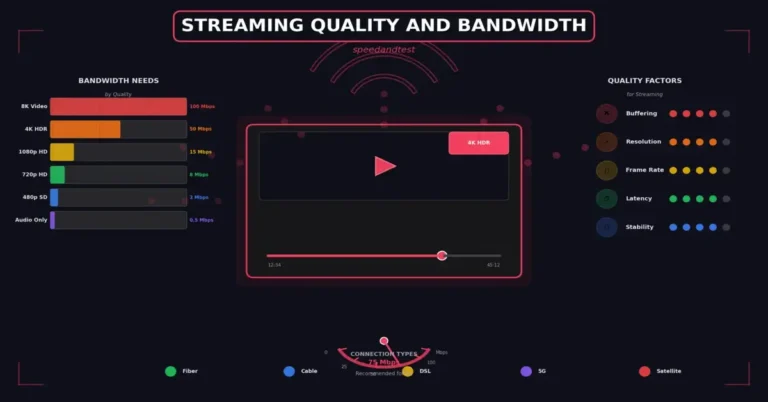
- Under 25 Mbps download: fine for browsing and email, tight for HD streaming or multiple devices at once.
- 25–100 Mbps download: comfortable for a household streaming, video calling, and browsing simultaneously.
- 100+ Mbps download: built for heavy multi-device use, 4K streaming, large downloads, and remote work without compromise.
- Ping under 50ms: smooth for video calls and most online gaming.
- Ping over 100ms: noticeable lag, especially in real-time applications.
If your numbers consistently fall short of what you’re paying for, it’s worth reading our ISP performance analysis guide before you pick up the phone to complain — you’ll walk into that call with evidence instead of a vague feeling that “the internet feels slow.”
For an independent, third-party perspective on what counts as broadband in the first place, the FCC’s broadband data resources are a useful benchmark to compare your own results against.
Real-World Scenarios: Matching the Tool to the Problem
Numbers on a screen mean nothing until you connect them to something you actually experience. Here’s how a handful of everyday situations play out once you know how to read your results.
“My Video Calls Keep Freezing”
This is rarely a download speed problem. Run your check and look straight at jitter and upload speed instead. Video calls send a continuous stream in both directions, so a spike in jitter — even for a second — is what causes that frozen frame, not a shortage of raw bandwidth.
“Downloads Are Slow, but Streaming Is Fine”
Streaming services adapt their quality to your available bandwidth, which can mask a real problem. A large file download can’t adapt the same way, so it exposes a weak connection much faster. If this describes you, your download figure deserves more attention than it’s been getting.
“It Works Fine Until the Evening”
This pattern points to network congestion, either in your building or further up the chain at your ISP. Testing at 2 p.m. and 9 p.m. on the same day, then comparing the two, turns a vague complaint into hard evidence you can actually act on.
Network Speed Checker vs. Speed Test: Is There a Difference?
You’ll see both terms used interchangeably, and for the most part, that’s fine — they describe the same underlying process. If there’s a subtle distinction worth knowing, it’s this: “speed test” tends to refer to the single act of running a check, while a network speed checker often implies the tool itself, sometimes bundled with extra diagnostics like server selection, historical result tracking, or connection-type detection. Neither term is wrong, but understanding the overlap helps when you’re comparing tools or reading reviews that use one phrase over the other.
What actually matters isn’t the label — it’s whether the tool gives you download, upload, ping, and jitter in a format you can understand and compare over time. A good network speed checker does exactly that, without burying the numbers you need behind ads or confusing jargon.
Frequently Asked Questions
How often should I use a network speed checker?
Once a month is enough for peace of mind, but if you’re troubleshooting a specific problem, test daily for a week so you have real data to compare, not just a single snapshot.
Why does my network speed checker give different results each time?
Network conditions shift constantly — other devices on your WiFi, your ISP’s traffic load, and even the specific server you connect to all change from one test to the next. Small fluctuations are completely normal.
Can a network speed checker test my WiFi signal strength?
Not directly. A speed checker measures throughput, not signal strength in decibels. If you suspect a weak signal specifically, you’ll need your device’s WiFi diagnostics or a separate signal-strength app alongside your usual speed test.
Is a free network speed checker as accurate as a paid one?
Yes, in almost every case. The free tools you already know are built on the same core measurement principles as any paid alternative. Accuracy depends far more on how you run the test than on what it costs.
Put This Into Practice Today
You now know more about how a network speed checker works than most people who use one every week. That knowledge only pays off once you act on it, though. Open your preferred checker, follow the steps above, and run your test right now — then run it again tomorrow at a different time of day.
Ready to see where your connection really stands? Run a full test with SpeedAndTest and get a clear, honest read on your download, upload, ping, and jitter — all in one place, in under thirty seconds.


One Comment