
Internet Performance Tester Results: Unlock Better Speed
Table of Contents
You run the test. A number flashes on screen. And then… what? Is 87 Mbps good? Bad? Should you be worried, or should you close the tab and get back to your day?
If you’ve ever stared at your internet performance tester results feeling more confused than informed, you’re not alone. Most people run a speed test the same way they check the weather — quickly, without really understanding what the numbers mean or what to do with them. That’s a missed opportunity, because those four little figures (download, upload, ping, and jitter) are actually telling you a detailed story about your connection, your router, your ISP, and even the device you’re using right now.
In this guide, you’ll learn exactly what your Internet Performance Tester results are measuring, why your Internet Performance Tester Results shift every time you test, and how to read your numbers the way a network technician would. By the end, you won’t just glance at a score — you’ll understand it.
What Internet Performance Tester Results Actually Measure
Before you can make sense of your results, you need to know what’s being tested. Good Internet Performance Tester results don’t just spit out a single number — it runs several distinct measurements, each one telling you something different about your connection.
Download Speed
This is the number most people care about, and for good reason: it determines how fast data travels from the internet to your device. Every time you stream a show, load a webpage, or download a file, you’re relying on your download speed. It’s measured in megabits per second (Mbps), and it’s usually the largest number on your Internet Performance Tester Results screen.
Upload Speed
Upload speed measures the reverse — how fast your device sends data out to the internet. It matters more than most people realize, especially now that video calls, cloud backups, and live streaming are part of daily life. A weak upload speed is often the hidden reason your Zoom calls freeze while your download speed looks perfectly fine.
Ping (Latency)
Ping measures how long it takes for a small packet of data to travel from your device to a server and back, expressed in milliseconds (ms). Lower is better. This is the number that matters most for anything happening in real time — gaming, video calls, or live-streaming — because it reflects responsiveness, not raw throughput.
Jitter
Jitter is the variation in your ping over time. If your ping bounces between 20ms and 90ms from one moment to the next, that inconsistency is jitter, and it’s often the real culprit behind choppy calls or laggy games — even when your average ping looks acceptable on paper.
How Internet Performance Tester Results Work Behind the Scenes
It helps to know what’s actually happening in the few seconds your test runs, because it explains a lot about why Internet Performance Tester Results vary.
When you hit “Go,” the tool opens multiple simultaneous connections to a nearby server and starts pushing small chunks of data back and forth as fast as your connection allows. The download phase measures how quickly those chunks arrive; the upload phase measures how quickly your device can send them out. Ping is measured separately, usually with a series of tiny packets sent before the throughput test even begins, so it isn’t skewed by the heavier download and upload load.
This is also why opening multiple browser tabs, running a VPN, or having a smart-home hub syncing in the background can quietly drag your numbers down — every one of those processes is competing for the same pipe your Internet Performance Tester Results is trying to measure cleanly. If you want the truest possible reading, close anything you don’t need running and give the test a clear lane.
Internet Performance Tester Results vs. Other Speed Tools
You’ll see a handful of different names used for tools that do essentially the same job: internet performance tester, internet speed checker, internet speed tester, and internet connection checker. In practice, most of these terms describe the same core function — measuring download, upload, and latency — but the framing tells you what the tool is emphasizing.
A tool marketed as an internet speed checker or internet speed tester tends to put the download number front and center, which is useful if raw throughput is your main concern. A tool positioned as an internet connection checker often leans harder into ping, jitter, and connection stability — more relevant if you’re troubleshooting video calls or online gaming rather than just checking whether you’re getting the plan you’re paying for. Whichever label you’re using, the underlying metrics you should actually be reading are the same four covered above.
Signs Your Results Point to an ISP Problem
Sometimes the issue isn’t your router, your Wi-Fi placement, or your test conditions — it’s genuinely on your provider’s end. A few patterns worth watching for:
- You’re consistently getting far less than your plan promises, even on a wired connection, tested at multiple times of day.
- Ping and jitter spike at predictable times, suggesting congestion upstream rather than in your home.
- Every device on your network shows the same shortfall, ruling out a single faulty gadget.
If you’re seeing two or more of these signs after ruling out the common mistakes above, it’s worth contacting your provider with your test history in hand — specific numbers, dates, and times make for a much more productive conversation than “my internet feels slow.”
Why Your Internet Performance Tester Results Change Every Time You Test
Have you ever run two tests back to back and gotten two completely different results? That’s normal, and it’s not your Internet Performance Tester Results malfunctioning — it’s a reflection of how dynamic your connection actually is.
Network Congestion and Peak Hours
Your neighborhood shares bandwidth capacity with everyone else on the same network segment. Evenings, when everyone’s home streaming and gaming, tend to show slower results than a quiet weekday morning. According to Cloudwards’ 2026 speed guide, available speeds can drop by 20 to 30 percent during peak hours — a meaningful swing if you’re testing right after dinner and comparing it to a midday result.
Wi-Fi vs. Wired Connections
Where you’re standing matters; a test run over Wi-Fi from the far side of your home will almost always underperform the same test run over an Ethernet cable plugged directly into your router. If your numbers seem disappointing, try a wired connection before assuming your plan is the problem — you can compare the difference for yourself.
Server Distance and Routing
Most Internet Performance Tester Results tools connect you to the nearest available test server. If that server is farther away, congested, or routed inefficiently, your results will reflect that detour — not necessarily your actual connection quality. Running the test at different times, and occasionally against a different server, gives you a more honest average.

How to Read Your Numbers Like a Pro
Numbers without context are just numbers. Here’s roughly what you need for common everyday activities, based on current guidance from Cloudwards and NordVPN:
- General browsing and email: Under 10 Mbps will feel noticeably slow; most modern households want well above this baseline.
- HD video streaming: At least 5 Mbps per stream.
- 4K streaming: 20 to 25 Mbps per stream — Netflix and Disney+ both recommend 25 Mbps for their 4K libraries.
- Video calls (Zoom, Meet, Teams): 3.8 to 4 Mbps for group HD calls; add 2 to 5 Mbps if you’re screen-sharing or collaborating live.
- Online gaming: Speed matters less here than latency — aim for ping under 50ms for competitive play, and under 100ms for casual games. A 20 Mbps connection with low ping will outperform a 500 Mbps connection with high ping every time.
How Much Speed Does Your Household Actually Need?
Your ideal number depends on how many people and devices are active at once:
- 1–2 users, light use: 50–100 Mbps is typically plenty.
- 3–4 users, streaming and working from home: 100–200 Mbps gives you breathing room.
- 5+ users, heavy streaming or gaming households: 200 Mbps or more helps avoid the evening slowdown.
If your internet performance tester results consistently fall short of what your household needs, that’s a genuine signal — not just a number to shrug off.
Common Mistakes That Skew Your Internet Performance Tester Results
Even great Internet Performance Tester Results can’t give you an accurate picture if the test itself is compromised. Watch out for these:
- Testing while other devices are active. A household member streaming 4K video or downloading a large game in the background will eat into your available bandwidth and drag your numbers down.
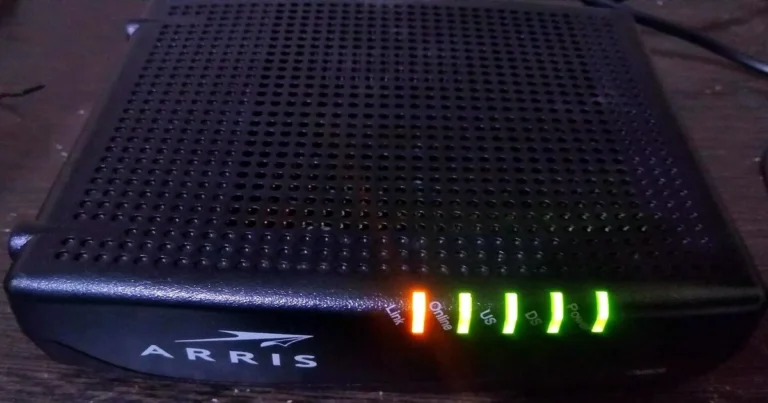
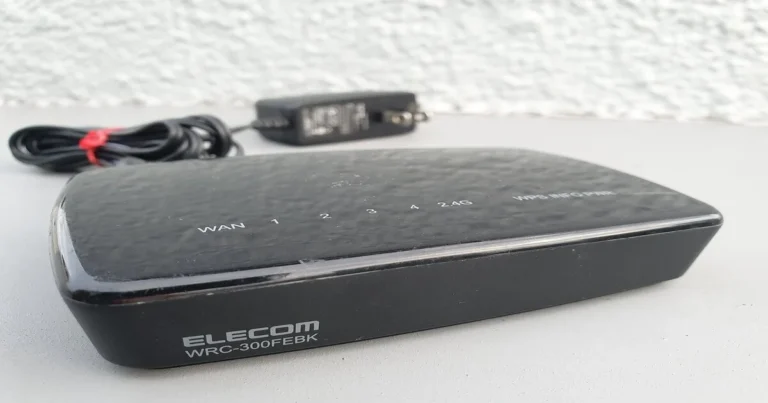
- Using an outdated router or modem. Older hardware sometimes can’t process modern connection speeds, capping your results regardless of what you’re paying for.
- Testing only once. A single test is a snapshot, not a pattern. Run it three or four times across different parts of the day for a result you can actually trust.
- Ignoring the test server. If your tester defaults to a distant or overloaded server, manually select a closer one when that option is available.
- Forgetting to restart your equipment. Routers and modems accumulate small performance issues over time; a simple restart before testing can meaningfully change your numbers.
When Numbers Alone Don’t Tell the Whole Story
It’s tempting to fixate on the download number and call it a day, but two connections with identical download speeds can feel completely different in practice. Packet loss, inconsistent jitter, and routing quality all shape your real-world experience in ways a single headline figure can’t capture. This is exactly why a thorough Internet Performance Tester Results, reports more than one metric — and why you should read all of them together, not just the biggest one on the screen.
If you want a deeper breakdown of what ping and jitter specifically mean for your day-to-day experience, our guide to jitter and ping walks through it step by step. And if you’re comparing wired versus wireless setups, WiFi vs Ethernet breaks down exactly how much of a difference your connection type makes.
Getting a Reliable Baseline
The single best thing you can do with any Internet Performance Tester Results is establish a baseline: run it at the same time, on the same device, over the same connection type, a few times a week. Once you know what “normal” looks like for your household, a sudden drop becomes obvious — and a lot easier to troubleshoot. For a full walkthrough on getting consistently accurate readings, check out our guide on speed test best practices.
Frequently Asked Questions
What are good Internet Performance Tester Results?
It depends entirely on what you’re doing online. For general browsing, anything above 25 Mbps download feels comfortable. For a household streaming in 4K or gaming competitively, 100+ Mbps with low ping (under 50ms) is a safer target.
Why do my Internet Performance Tester Results show different results each time?
Network congestion, the test server you’re connected to, background activity on your network, and even Wi-Fi signal strength all shift from moment to moment. Testing several times across the day gives you a more reliable average than any single result.
Does a high download speed mean I have a good connection?
Not necessarily. A high download number paired with high ping or heavy jitter can still feel sluggish during video calls or online games. Look at all four metrics together, not just the download figure.
Should I test on Wi-Fi or a wired connection?
Test both. A wired connection shows you the maximum your plan can deliver, while a Wi-Fi test shows you what you’re actually experiencing day to day. The gap between the two tells you whether your router or Wi-Fi setup needs attention.
How often should I run a speed test?
A few times a week, at different times of day, is enough to build a reliable baseline without becoming obsessive about it. Testing right after a service outage or a noticeable slowdown is also worthwhile.
Ready to See Where You Actually Stand?
Understanding your numbers is only useful once you have numbers to understand. Run a free test with our Internet Performance Tester Results right now, and use everything you just learned to read your results with real confidence. If something looks off, you’ll know exactly which metric to investigate first — and that’s half the battle in fixing a sluggish connection.