
Network Troubleshooting: How to Find and Fix Issues
Table of Contents
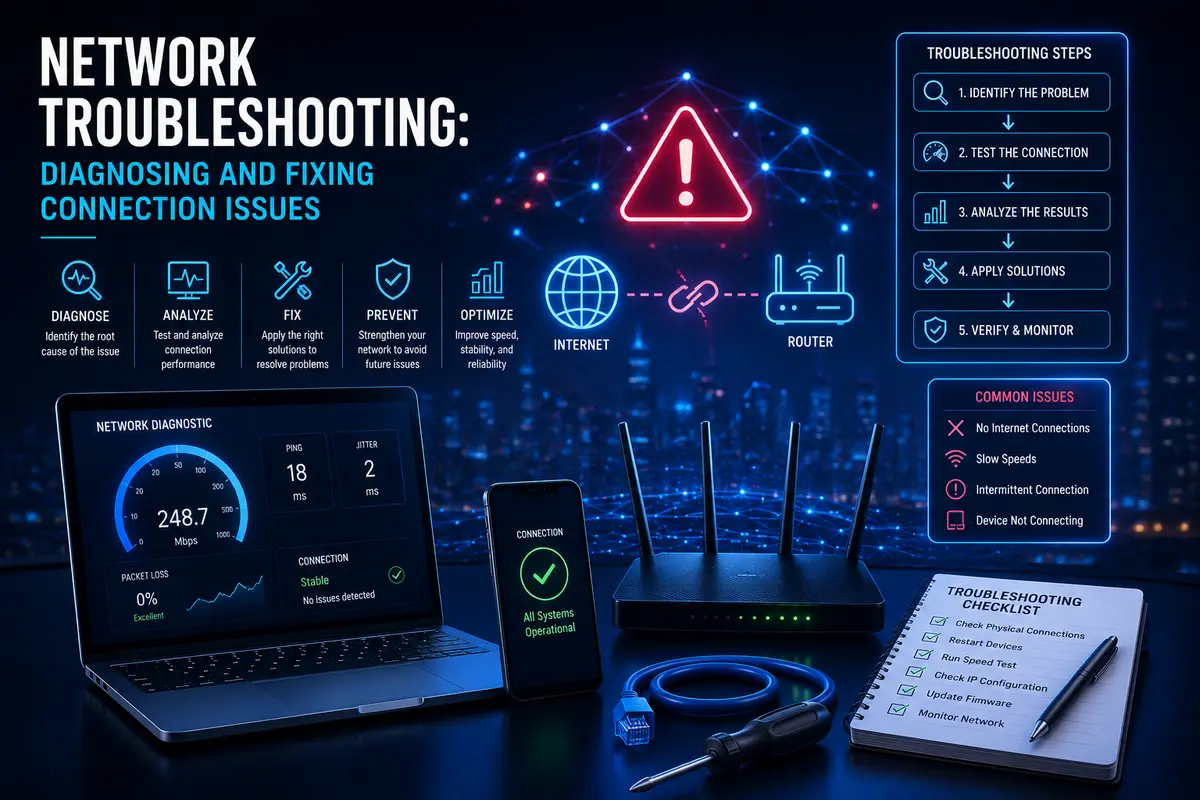
Few things are more frustrating than a sudden internet outage or a connection that has mysteriously slowed to a crawl, especially when you have no idea where to even begin looking for the cause. Network Troubleshooting can feel intimidating, but the vast majority of home internet problems fall into a relatively small set of common categories, each with a logical, systematic approach to diagnosis and resolution. This guide walks through a structured troubleshooting process that any household can follow, moving from the simplest and most common fixes toward more advanced diagnostic steps, helping you resolve connection issues efficiently rather than randomly trying things and hoping for the best.
Start With the Simplest Explanation
Before diving into complex diagnostics, rule out the simplest and most common causes first. Check whether the outage is affecting a single device or your entire network, verify that all cables are securely connected, and check whether your internet service provider has reported a known outage in your area, since a widespread provider outage requires an entirely different response than a local equipment issue.
The Value of a Basic Restart
Restarting your modem and router, waiting a full thirty seconds before powering back on, resolves a surprisingly large share of connectivity issues by clearing temporary memory problems and re-establishing a fresh connection to your provider’s network. This simple step should generally be your first Network Troubleshooting action for almost any connectivity problem you encounter.
Isolating the Problem to a Specific Device or the Whole Network: Troubleshooting
If only one device is experiencing problems while others connect normally, the issue likely lies with that specific device rather than your broader network or internet service. Try connecting a different device to confirm this, and if the original device still struggles, focus your troubleshooting on that device’s network settings, drivers, or physical connection rather than your router or modem.
Diagnosing Wired Versus Wireless Issues
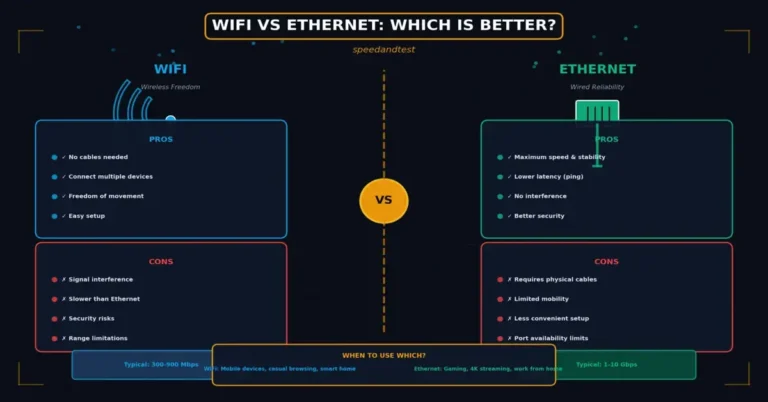
Testing a wired connection alongside a wireless one on the same device quickly reveals whether your problem is related to Wi-Fi specifically or your broader internet connection. Strong wired performance alongside weak wireless performance points toward Wi-Fi interference, router placement, or wireless equipment issues, while poor performance on both types of connection points toward your modem, your provider, or your broader home network infrastructure.
Checking for Interference and Physical Obstructions
Wireless interference from neighboring networks, household electronics like microwaves and cordless phones, and physical obstructions like thick walls and metal objects can all degrade Wi-Fi performance in ways that mimic a genuine connectivity problem. Temporarily moving closer to your router, or testing in a different room, can help determine whether physical factors are contributing to the issue you are experiencing.
Investigating IP Address and DNS Issues
Occasionally, connectivity problems stem from IP address conflicts or DNS resolution failures rather than a genuine loss of internet connectivity. Releasing and renewing your device’s IP address, or temporarily switching to a different DNS server, can resolve issues where your device technically has a network connection but cannot successfully reach websites or online services.
Checking Your Router’s Administrative Settings
Logging into your router’s administrative interface can reveal useful diagnostic information, including connected device counts, error logs, and current firmware status. An unusually high number of connected devices, some of which you may not recognize, can indicate unauthorized network access consuming bandwidth and potentially causing the performance issues you are experiencing.
- Restart your modem and router as a first troubleshooting step for most connectivity issues.
- Determine whether the problem affects one device or your entire network
- Compare wired and wireless performance to isolate where the problem originates
- Check for physical obstructions and wireless interference sources near your router
- Log into your router’s admin panel to review connected devices and error logs
When to Suspect Provider-Side Issues
If troubleshooting at home does not resolve the problem, and especially if the issue persists on a wired connection with no unusual conditions, the problem may originate with your internet service provider’s infrastructure rather than anything within your home. Checking your provider’s service status page and contacting their support team with specific details about your troubleshooting steps already taken gives them a stronger starting point for further diagnosis.
Diagnosing Intermittent Versus Persistent Problems
Intermittent problems that come and go are often more challenging to diagnose than a persistent, constant issue. Keeping a log of when problems occur, including the time of day and any unusual circumstances, such as weather or specific activities happening on your network, can reveal patterns that point toward a specific, addressable cause rather than a seemingly random, unexplainable issue.
Advanced Diagnostic Tools Worth Knowing
Beyond basic restarts and admin panel checks, tools like ping and traceroute, both built into most operating systems, provide more detailed diagnostic information. Ping tests basic connectivity and latency to a specific destination, while traceroute reveals the path your data takes and can help identify exactly where along that path a problem is occurring, whether within your home network or somewhere further along your provider’s infrastructure.
How This Connects to Broader Network Troubleshooting Topics
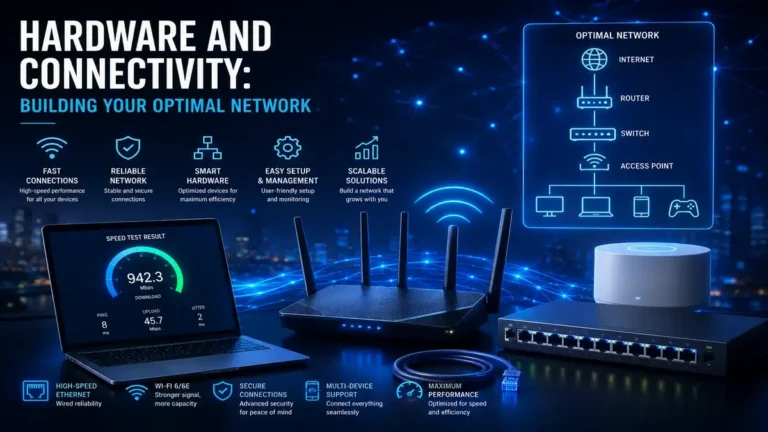
Effective troubleshooting benefits from understanding the broader context of how your network and equipment function. For a deeper look at building a well-configured home network from the ground up, see our guide on hardware and connectivity, and for a comparison of connection types relevant to isolating wireless-specific problems, see our article on Wi-Fi versus Ethernet.
Preventing Future Problems
While not every connectivity issue can be prevented, several proactive habits meaningfully reduce how often you encounter problems in the first place. Keeping router firmware updated, periodically restarting equipment even without an obvious problem, and monitoring connected devices for unfamiliar entries all contribute to a more stable, reliable network that requires less frequent emergency troubleshooting.
Network Troubleshooting Smart Home and IoT Device Issues
Smart home devices, from thermostats to security cameras to voice assistants, introduce their own unique Network Troubleshooting challenges, since they often lack a visible interface for diagnosing problems directly. When a smart device loses connectivity while other devices remain unaffected, checking the device’s companion app for status information, confirming it remains within a reasonable range of your router, and restarting the specific device are reasonable first steps before assuming a broader Network Troubleshooting problem exists.
Many smart home devices also operate exclusively on the 2.4 gigahertz band, which is more prone to interference and congestion than the 5 gigahertz band typically used by computers and phones. If several smart devices experience problems simultaneously while your primary devices remain unaffected, congestion specifically on this shared band is a reasonable factor to investigate further.
Documenting Problems for Effective Support Calls
When home Network Troubleshooting fails to resolve a persistent issue, documenting your findings before contacting support makes the eventual conversation significantly more productive. Note which devices are affected, whether the issue is constant or intermittent, what Network Troubleshooting steps you have already attempted, and any relevant timing patterns you have observed, giving the support representative concrete information to work from rather than a vague description of general slowness.
Understanding Error Messages and Status Lights
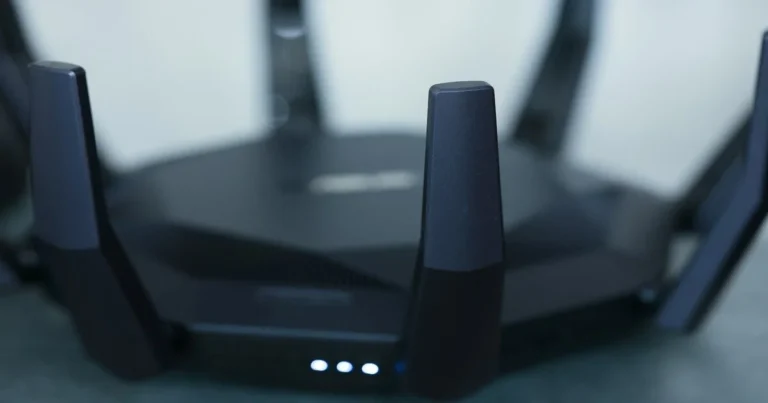
Modern routers and modems typically communicate their status through a combination of indicator lights and, on higher-end models, a companion app with more detailed error reporting. Learning what your specific equipment’s normal status indicators look like makes it much easier to quickly recognize when something has actually gone wrong versus when your equipment is simply operating normally, saving valuable time during future Network Troubleshooting sessions.
Frequently Asked Questions
How long should I wait after restarting my router before Network Troubleshooting further?
Wait a full two to three minutes after restarting to allow your router and modem to fully reconnect to your provider’s network before concluding that the restart did not resolve the issue.
Is it normal to lose connection briefly during a storm?
For most wired connections, storms have minimal direct effect, though power fluctuations can occasionally cause brief interruptions. Satellite connections are more susceptible to genuine weather-related disruption during heavy storms.
How do I know if my modem or my router is the source of the problem?
Connecting a device directly to your modem, bypassing your router entirely, can help isolate whether an issue originates with your modem and provider connection or with your router’s own configuration and hardware.
Should I factory reset my router if basic Network Troubleshooting does not work?
A factory reset can resolve persistent configuration issues but requires reconfiguring your network from scratch, so it is generally worth trying other steps first before resorting to this more disruptive option.
What does it mean if my router’s internet light is red or off?
This typically indicates your router is not successfully receiving an internet connection from your modem or provider, pointing toward a modem, cabling, or provider-side issue rather than a Wi-Fi-specific problem.
Can too many connected devices actually cause connectivity problems?
Yes, particularly on older routers with limited device capacity, an unusually large number of connected devices can degrade performance or, in rare cases, cause connectivity to become unstable.
Is it worth trying a different Ethernet cable when Network Troubleshooting?
Yes, a damaged or outdated cable is a simple, inexpensive factor to rule out early in the Network Troubleshooting process, particularly if wired speeds seem unexpectedly poor or inconsistent.
How can I tell if a specific device has a driver or software problem?
If other devices connect normally while one specific device struggles even after basic Network Troubleshooting, updating that device’s network drivers or operating system is a reasonable next step to try.
Should I contact my internet service provider before or after trying to troubleshoot myself?
Trying basic Network Troubleshooting first, such as restarting equipment and checking cables, is generally worthwhile, since providers will often ask whether you have already attempted these steps.
Can outdated router firmware cause connectivity problems?
Yes, outdated firmware can contain unresolved bugs affecting stability and performance, making regular firmware updates a valuable preventive troubleshooting habit worth maintaining.
What is traceroute and when should I use it?
Traceroute shows the path your data takes to reach a destination, helping identify at which specific point along that path delays or failures are occurring; it is useful for more advanced diagnostic situations.
Why does my connection work fine on my phone but not my laptop?
This points toward a device-specific issue, such as an outdated network driver, incorrect Wi-Fi settings, or a hardware problem specific to that laptop rather than your broader network or provider.
Why do my smart home devices keep losing connection?
Smart devices often rely on the more congested 2.4 gigahertz band, so interference or distance from your router can affect them more than other devices, making placement and band-specific troubleshooting worthwhile.
What information should I gather before calling my provider’s support line?
Note affected devices, whether the issue is constant or intermittent, steps already attempted, and any timing patterns, giving support a clear, specific starting point rather than a vague description.
Can a power outage cause lingering connectivity problems after power returns?
Occasionally, if equipment does not fully reboot cleanly. Manually power-cycling your modem and router after any outage is a reasonable precaution to ensure a clean, stable reconnection.
Is it worth keeping a permanent troubleshooting log for my home network?
For households with recurring or hard-to-diagnose issues, yes. A simple ongoing log of problems and their resolutions builds valuable knowledge for faster diagnosis of future issues.
Should I unplug my router overnight if I am experiencing recurring problems?
A single full restart is usually sufficient. Leaving equipment unplugged overnight is unnecessary in most cases and simply delays reconnection without providing any additional troubleshooting benefit.
Can a browser-specific issue be mistaken for a Network Troubleshooting problem?
Yes, browser cache issues or extensions can cause specific websites to fail loading while your actual network connection remains perfectly healthy, so testing with a different browser can help rule this out.
Systematic network troubleshooting transforms a confusing, frustrating problem into a manageable, step-by-step process with a much higher likelihood of a successful resolution. According to Wikipedia’s overview of network troubleshooting, a structured, methodical approach that isolates variables one at a time remains the most effective general strategy for diagnosing and resolving connectivity issues of nearly any kind.

2 Comments