Internet Connection Test: Get Reliable Results
Table of Contents
Something’s wrong with your internet, but you can’t quite put your finger on what. Pages load fine one minute and crawl the next. Your video call drops out for no obvious reason. Before you call your provider and get stuck repeating “it’s just slow” for ten minutes, there’s a better first move: running a proper internet connection test. Done right, it turns a vague complaint into a specific, provable problem — and that changes everything about how quickly it gets fixed.
Most people think of a connection test as just a speed number, but it’s really a diagnostic tool. Used correctly, it can tell you whether the fault sits with your device, your WiFi, your router, or your provider — long before you pick up the phone. This guide walks you through exactly how to use one that way.
You don’t need any technical background to do this well, either. Every step below relies on tools you already have access to — a browser, your phone, and a few free minutes. What changes is how deliberately you use them, and what you pay attention to once the results appear on screen.

Why an Internet Connection Test Is More Than Just a Speed Number
A single speed reading tells you very little on its own. What actually matters is what changes between tests, and under what conditions. Run an internet connection test at different times, from different devices, and over different connection types, and a pattern usually emerges — one that points directly at the source of your problem instead of leaving you guessing.
Think of it less like checking your speedometer and more like a doctor taking your blood pressure at rest and then during activity. One reading is a data point. Several readings, taken deliberately, tell a story — and that story is what actually leads you to a fix instead of another guess.
The Four Signs Your Connection Test Should Always Check
Download and Upload Speed
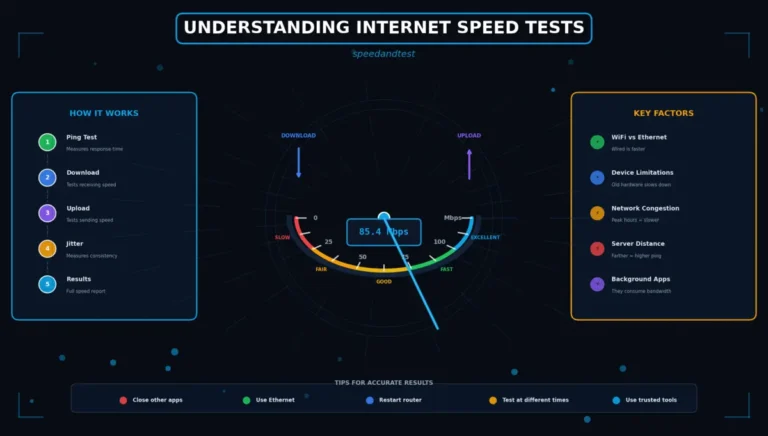
These are the baseline numbers everyone recognizes, measured in Mbps. Download affects how fast content reaches you; upload affects how fast your data reaches everyone else — critical for video calls, cloud backups, and live streaming.
Ping (Latency)
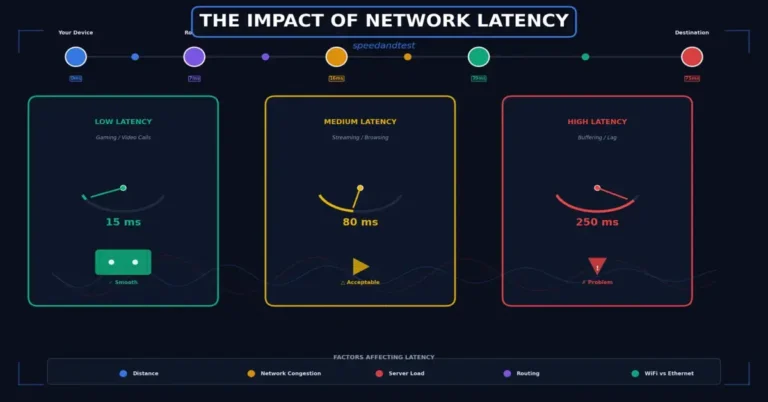
Ping measures the round-trip time for a small data packet, in milliseconds. It’s the single best predictor of whether video calls and online games will feel responsive or sluggish, regardless of how high your speed numbers look. For a deeper breakdown, see our guide on network latency.
Jitter
Jitter is the variation in ping over time. A connection with low average ping but high jitter can still feel choppy and unpredictable, which is why any thorough internet connection test reports both numbers side by side rather than one alone.
Packet Loss
Packet loss happens when data sent across your connection never arrives at all, and it has to be resent. Even a small percentage of lost packets can cause the stutters, dropped calls, and frozen screens that speed alone can’t explain — which is exactly why this metric deserves your attention, not just download and upload.

How to Run an Internet Connection Test That Actually Diagnoses the Problem
Follow this sequence instead of running a single random test. It’s designed to isolate exactly where a fault lives.
Step 1: Test on Ethernet First
Plug directly into your router if you can, and run your test. This removes WiFi from the equation entirely, giving you the closest possible reading to what your ISP is actually delivering to your home.
Step 2: Test the Same Way Over WiFi
Run the identical internet connection test, same device, same server, but disconnect the cable and switch to WiFi. If the numbers drop significantly, your WiFi setup — not your provider — is the likely culprit. Our Ethernet vs. WiFi comparison explains why this gap happens and how big a difference is considered normal.
Step 3: Test on a Second Device
If one laptop consistently underperforms while your phone tests fine on the same network, the problem likely lives with that specific device — an outdated network adapter driver or a background app hogging bandwidth — not your connection as a whole.
Step 4: Repeat at a Different Time
If everything checks out fine in the afternoon but falls apart at 8 p.m., you’re likely dealing with local network congestion during peak hours rather than a fault in your equipment.
Step 5: Restart and Retest
Before assuming the worst, restart your router, wait sixty seconds, and run the test again. It sounds almost too simple, but a surprising number of connection issues clear up with nothing more than a clean restart.
Reading Your Results: What Points to What
Once you’ve gathered a few results from the steps above, here’s how to interpret the pattern you’re seeing:
- Good on Ethernet, poor on WiFi: a router placement or WiFi interference issue, not your ISP.
- Poor on every device, every connection type: very likely an ISP-side problem worth escalating with real data in hand.
- Fine most of the day, poor in the evening: network congestion, either in your building or your provider’s local infrastructure.
- Fine on speed, but calls still lag: look at ping, jitter, and packet loss specifically — this is rarely a bandwidth problem.
- Only one device struggles: a local device issue, not a connection-wide fault.
When to Escalate to Your ISP — and What to Bring
Providers respond far faster to specifics than to frustration. Before you call, gather at least three to five days of internet connection test results, noting the time, the connection type, and the device used for each one. If the pattern shows a consistent shortfall against your plan’s advertised speed, especially over a wired connection, you have a legitimate case.
Frame the conversation around numbers, not feelings. Instead of saying the connection “feels slow,” tell the representative exactly what you measured, when, and over what connection type. Support teams are trained to move faster once a caller demonstrates they’ve already done the basic troubleshooting — it signals that a scripted “have you tried restarting your router” response won’t resolve the call.
It also helps to understand what you’re comparing against. Review our guide to choosing an ISP to see what realistic performance looks like for your plan tier, and check the FCC’s broadband benchmarks for an independent reference point that has nothing to do with your provider’s own marketing claims.
Documenting Results for Warranty or Contract Disputes
If your goal is more than a personal fix — say, breaking a contract early or requesting a credit for chronic underperformance — the way you document your internet connection test results matters just as much as the results themselves.
Screenshot every test, including the timestamp, the server used, and the connection type. Keep them in a single folder organized by date. Providers and consumer protection bodies alike take an organized log far more seriously than a handful of scattered screenshots sent over several separate emails. If your case escalates, this record becomes the backbone of your complaint.
It’s also worth noting your plan’s advertised speed directly alongside each result, since a provider’s obligation is usually measured against that published figure rather than an industry average. A consistent, well-documented shortfall against your own contract is a far stronger argument than a general sense that “things feel slower than they used to.”
Testing Different Connection Types: What Changes
Not every internet connection test happens over a home WiFi network, and the way you interpret the results should shift depending on what you’re testing.
Mobile Data (4G/5G)
Expect more variation here than on a fixed line — signal strength, network congestion, and even the weather can shift your numbers from one minute to the next. A single poor reading on mobile data means far less than the same reading on a wired connection at home.
Public WiFi
Coffee shop and airport networks are shared by dozens of strangers at once, so treat any result here as a rough estimate rather than a reliable benchmark of anything beyond that specific moment. If a public network consistently tests poorly across multiple visits, it’s worth avoiding for anything sensitive or bandwidth-heavy, regardless of what a single reading shows.
VPN Connections
A VPN routes your traffic through an extra server, which almost always adds latency and can reduce throughput. If you’re troubleshooting a real problem, always disconnect your VPN and test again before concluding, then reconnect it afterward if you still need it for privacy or work access.
Common Myths About Internet Connection Tests
A few misconceptions keep people from getting real value out of their results. Clearing these up will save you time the next time something feels off.
Myth: A Single Bad Result Means Your Internet Is Broken
Connections fluctuate constantly. One weak reading during a moment of high local traffic doesn’t prove anything on its own. What matters is whether that dip repeats across several tests taken under similar conditions.
Myth: Faster Is Always Better
Beyond a certain point, extra download speed stops making a real difference for everyday tasks. A household streaming in HD and browsing casually rarely notices anything past 100 Mbps. Ping and jitter, not raw speed, are usually what separate a smooth experience from a frustrating one.
Myth: Every Testing Tool Gives the Same Number
Different tools use different servers, different test file sizes, and slightly different measurement windows. A 10-15% variation between two reputable tools run back-to-back is completely normal and doesn’t mean either one is wrong.
Building a Simple Testing Habit
You don’t need to test daily to stay ahead of problems. A short, consistent routine catches issues long before they become a full-blown outage or a maddening support call.
- Run one internet connection test a week, at roughly the same time, and jot down the result.
- If something feels off between your scheduled checks, run an extra test immediately rather than waiting.
- Keep a simple log — even a note on your phone works — so you can spot a slow decline instead of only noticing sudden drops.
- Revisit your baseline every few months, since your household’s usage and device count naturally grow over time.
This habit turns your internet connection test from an emergency tool into a preventative one. You’ll catch a failing router or a degrading line weeks before it becomes bad enough to disrupt your day, and you’ll walk into any conversation with your provider already holding the evidence.
Frequently Asked Questions
How long does an internet connection test take?
Most tools finish in twenty to forty seconds, measuring download, upload, ping, and often jitter and packet loss in that same short window.
Does running an internet connection test use a lot of data?
A single test typically uses somewhere between 10 and 100 MB, depending on your connection speed. That’s negligible on WiFi, but worth keeping in mind if you’re troubleshooting over a limited mobile data plan.
Why does my internet connection test pass, but streaming still buffers?
Streaming quality depends on sustained speed over minutes, not the short burst a test measures. It’s also sensitive to jitter and packet loss, which can interrupt playback even when your average speed looks perfectly healthy.
Should I trust my router’s own connection test over a third-party one?
Both have a place. Your router’s test is useful for isolating problems close to the source, while an independent internet connection test gives you a more neutral, comparable reading you can use when discussing issues with your provider. Using both together, rather than relying on just one, gives you the most complete picture available.
Stop Guessing — Start Testing
The next time your connection feels off, resist the urge to just restart the router and hope. Run through the five-step sequence above, note what changes between each test, and you’ll know within minutes whether the fault is your device, your WiFi, or your provider. A few minutes of deliberate testing beats hours of frustrated guessing every single time.
Ready to find out what’s really going on? Run a free internet connection test right now with SpeedAndTest and get download, upload, ping, and jitter results in one clear, no-nonsense report.